SiteVibes simplifies collecting and sending automatic review requests on BigCommerce. To set up, disable BigCommerce's default reviews and emails, install and enable the SiteVibes app and widgets, add review and star rating widgets to product and category templates, customize the review landing page URL, then save and test the setup.
SiteVibes makes it easy to automatically collect reviews as well as send automatic review requests. To set up SiteVibes Reviews on your BigCommerce site simply follow the steps below. To learn about enabling and configuring Review features please visit this article.
1. Disable Default Reviews on BigCommerce
-
Sign in to your BigCommerce store and navigate to Advanced Settings -> Comments. From here you will want to click on Built-In and disable (uncheck) "Product Reviews". Click Save.

2. Disable Default Review Request Emails on BigCommerce
-
Next, navigate to Store Setup -> Store Settings -> Miscellaneous and uncheck the Product Review Emails. Click save.

3. Enable SiteVibes Review Widget
-
Make sure you installed the SiteVibes app for BigCommerce. If you have not, here are the steps to install the SiteVibes app.
Once the app is installed and you are in the app, navigate to Reviews -> Widgets -> Product Reviews. Here is where you will enable the Product Reviews widget.
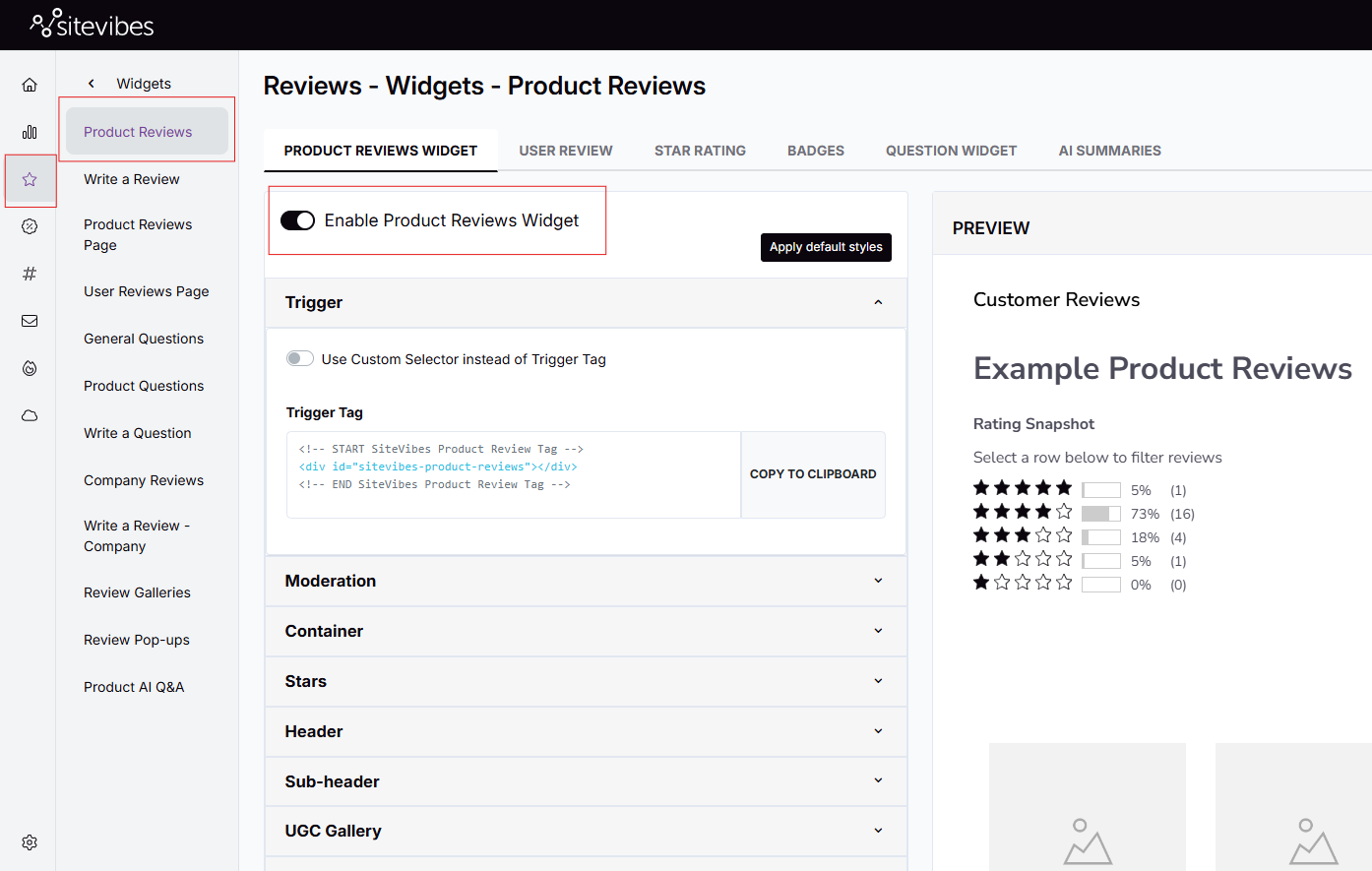
4. Adding the Review Widget to Stencil
- Go to Templates > Components > Products > product-view.html.
-
You can add the following code at the end of the file:
<!-- START SiteVibes Product Review Tag -->
<div id="sitevibes-product-reviews"></div>
<!-- END SiteVibes Product Review Tag -->
Click Save & apply file.
5. Adding the Star Rating Widget
- Go to Templates > Components > Products > product-view.html.
-
Under the line that contains class="productView-title", add the following code:
<!-- START SiteVibes Product Review Rating Widget --> <div id="sitevibes-star-rating-widget"></div> <!-- END SiteVibes Product Review Rating Widget --> - Click Save & apply file.
6. Adding Star Rating to Category pages
Navigate to Templates > Components > Products > card.html.
-
Add the following code wherever you want stars to display on the product cards:
<sv-product-category-star-rating data-product-id='{{id}}'></sv-product-category-star-rating> Click Save & Apply file.
7. Customize Review Landing Page for Automatic Review Request Emails
-
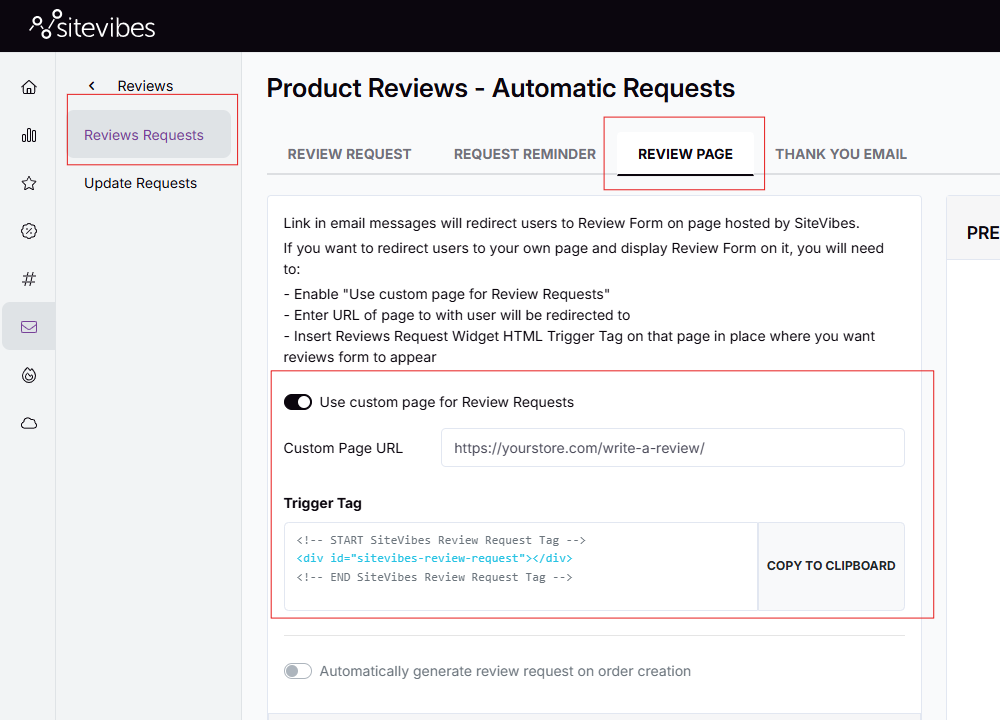
To send customers to a Review Request Landing Page that is on your website, for example, yourstore.com/write-a-review/, click the Review Page tab at the top of the Review Request section. Enable "Use custom page for review request" and put in the URL of the custom page. Click update. Copy the provided Div ID and place it on your custom review page.
<!-- START SiteVibes Review Request Tag -->
<div id="sitevibes-review-request"></div>
<!-- END SiteVibes Review Request Tag -->
8. Save all settings and test
Once you've updated and saved all your settings, you can navigate to a product page to see Reviews in action.