SiteVibes helps manage customer reviews by enabling branded review landing pages on your site, sending review request emails after purchase, and follow-up reminders. Set up a custom review page with a div tag, configure email triggers based on order timing or status, and use an email editor with in-mail review functionality. Automatic review requests and up to two reminder emails can be enabled for better customer engagement.
SiteVibes provides powerful tools to help you collect and manage customer reviews, including sending review request emails, follow-up reminders, and creating a branded review request landing page hosted on your website. This guide will walk you through the setup process.
1. Creating a Landing Page
Instead of sending traffic to our page to collect reviews or thank a customer for leaving a review, we can drive them back to your site.
1. Navigate to Email -> Reviews and select the 'Review Landing Page' tab
2. On your store create a webpage with a URL i.e. /write-a-review/. In the body of the page, add the following div:
<!-- START SiteVibes Review Request Tag -->
<div id="sitevibes-review-request"></div>
<!-- END SiteVibes Review Request Tag -->
In SiteVibes and the Reviews Page, Add the full URL in the 'Custom Page URL'
Update the remaining settings and click update.
2. Setting Up Review Requests
After a customer purchases from your store, invite them to leave a product review with Review Request emails.
1. Navigate to Email -> Reviews and select the 'Review Request' tab
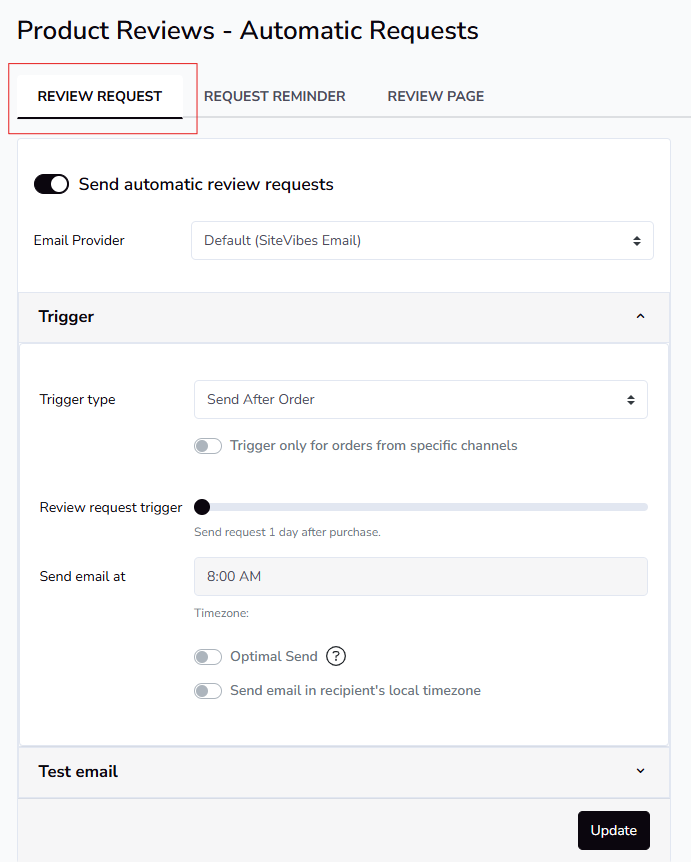
Open the Trigger section and setup your triggers for sending Review Request Emails.
- Send After Order - This will send a set number of days after the initial order was placed. For example, I buy a product on 11/21 and the trigger is set to 14 days, I will get my first review request email on 12/5.
- Send After Order Status Change (BigCommerce & Shopify only) - This will let you set an order status as the trigger. For example, you can select shipped and the number of days after the order is marked as shipped will be when an email is sent.
- Delivery Date (API Only) - Pass SiteVibes the estimated delivery date and trigger the review request email a set number of days after delivery.
Editing the Email template is easy. Simply click 'Edit email content with template builder' button and that will open up the email editor. The email editor contains unique blocks to support in-mail review.
- In-mail review allows a user with a specific email service, like Gmail, to complete their review without leaving Gmail.
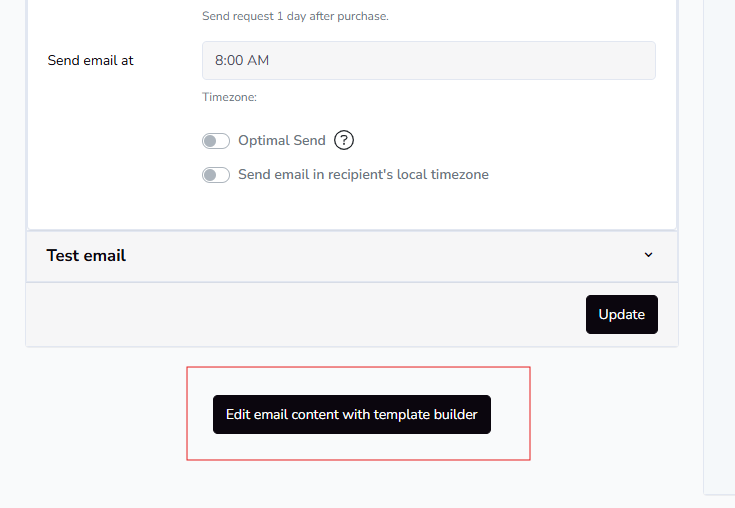
- Enable 'Send Automatic Review Requests' and click update.
3. Setting Up Review Request Reminders
After the first review request email is sent, you can send up to 2 additional reminder emails if the customer has not completed their review. To set these up and enable them, click the 'Request Reminder' tab and follow the same steps as above.