You can import product reviews into SiteVibes using a CSV file with required fields: Product ID/SKU, review title, content, rating (1-5), and user name. Optional fields include email, status, and created date. Import by navigating to Reviews Manage Content Product Reviews, then upload and map CSV columns to SiteVibes fields. After import, reviews can be edited, approved, filtered, and managed for storefront visibility.
You can import existing product reviews into SiteVibes using a CSV file. This allows you to bring in reviews collected from other platforms or systems and display them within SiteVibes.
Before You Begin
Prepare your CSV file for upload. The following fields are required for a successful import:
Required Field |
Description |
Product ID or Product SKU |
Identifies which product the review belongs to. |
Review title |
Short title or headline of the review. |
Review content |
The main body of the review. |
Review rating |
Numeric rating (1–5). |
User name |
The name of the reviewer. |
| Created at | The date in which the review was created |
Step-by-Step Instructions
1. Open the Reviews Section
From your SiteVibes dashboard, click Reviews in the left-hand navigation.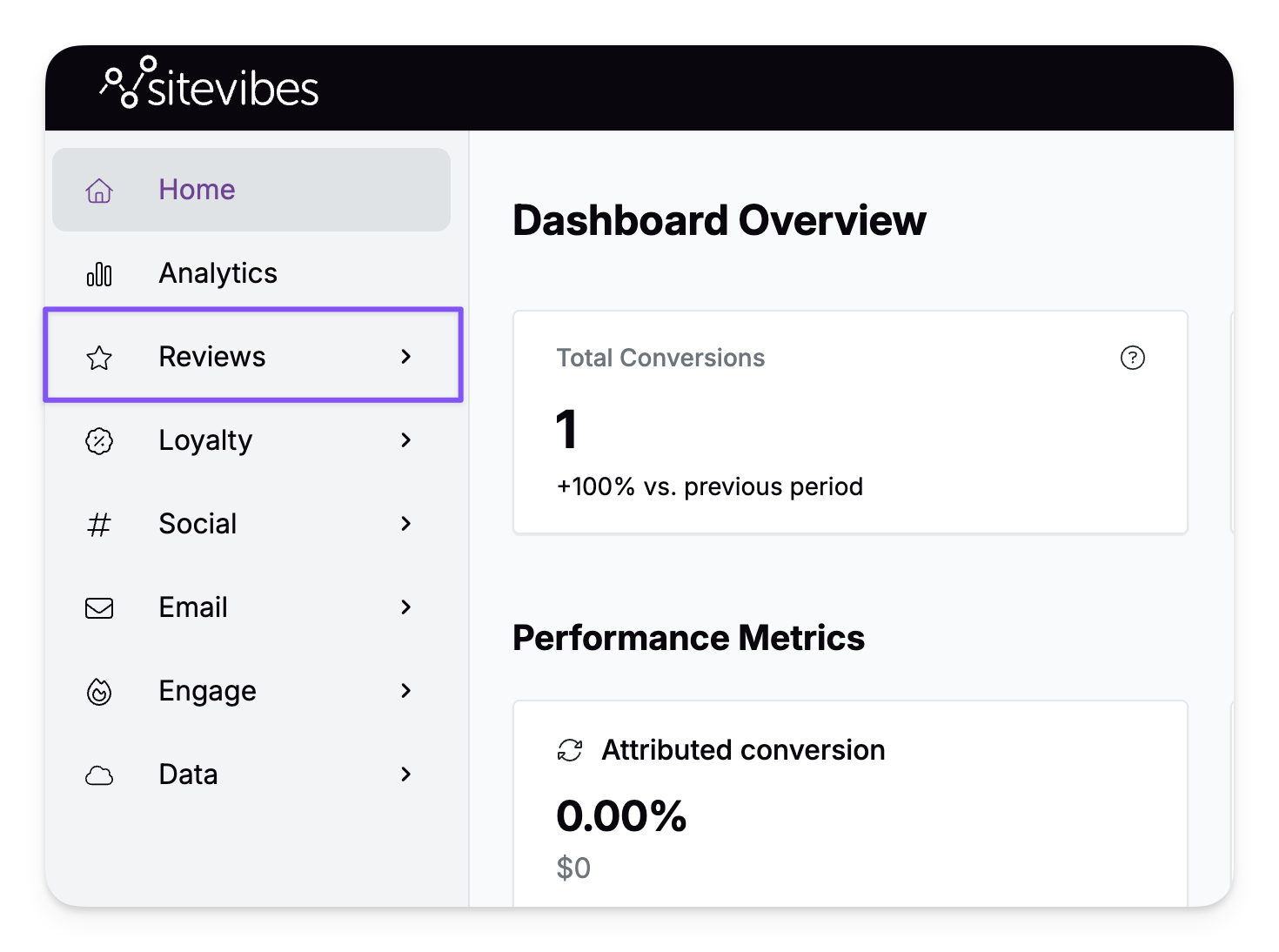
2. Go to Manage Content
Click Manage Content under the Reviews menu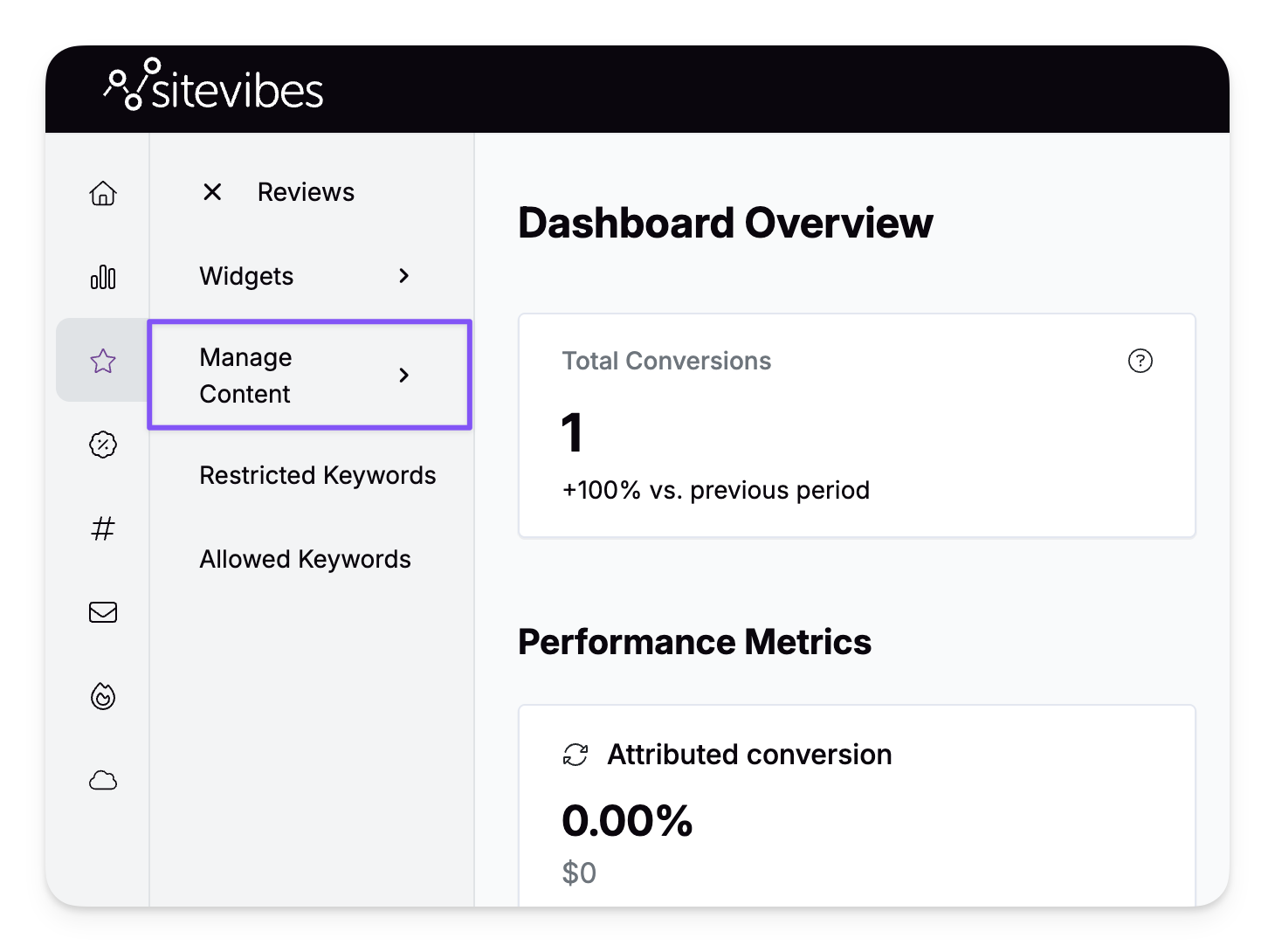
3. Select Product Reviews
Choose Product Reviews from the options.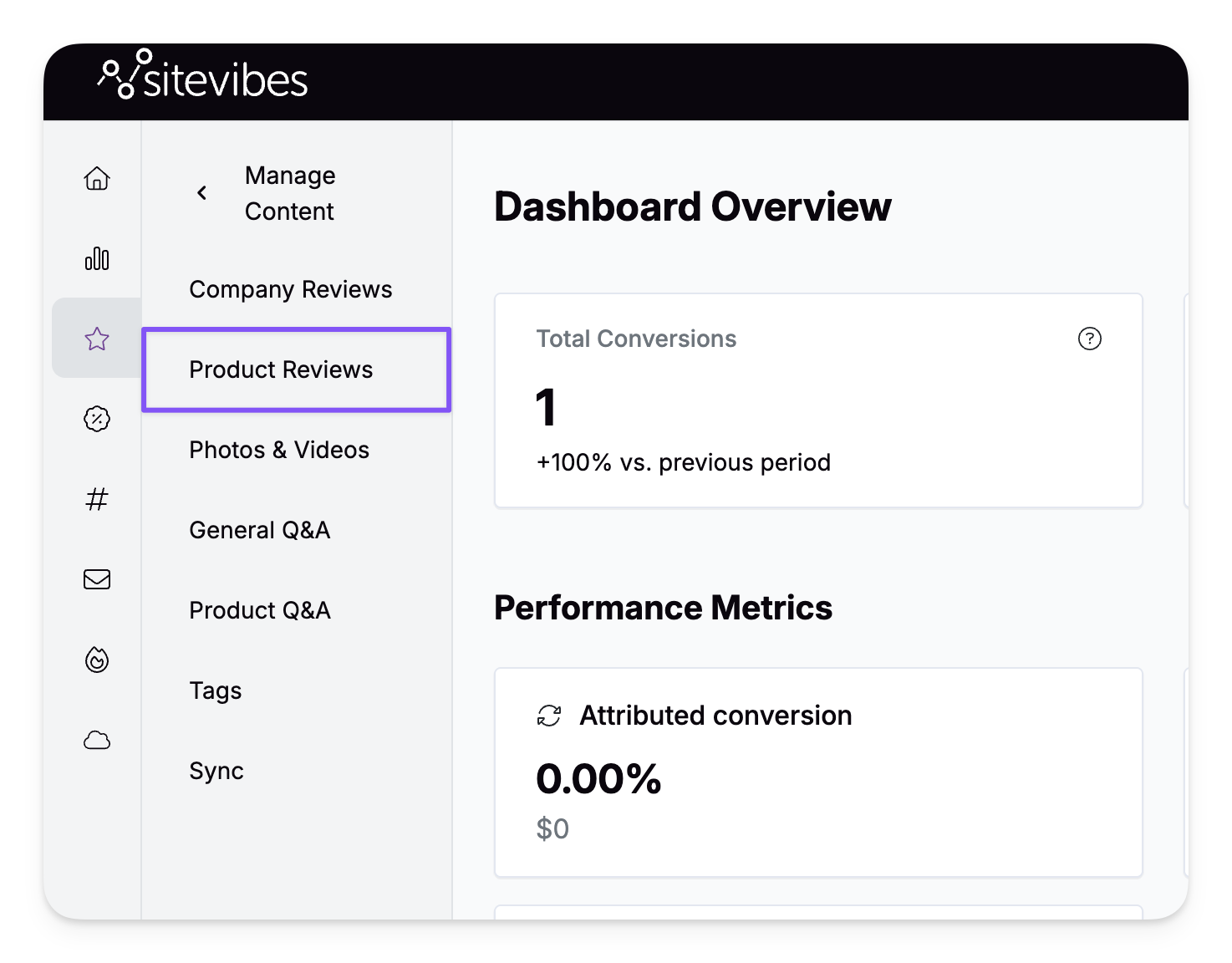
4. Start the Import Process
Click Import Reviews in the top-right corner.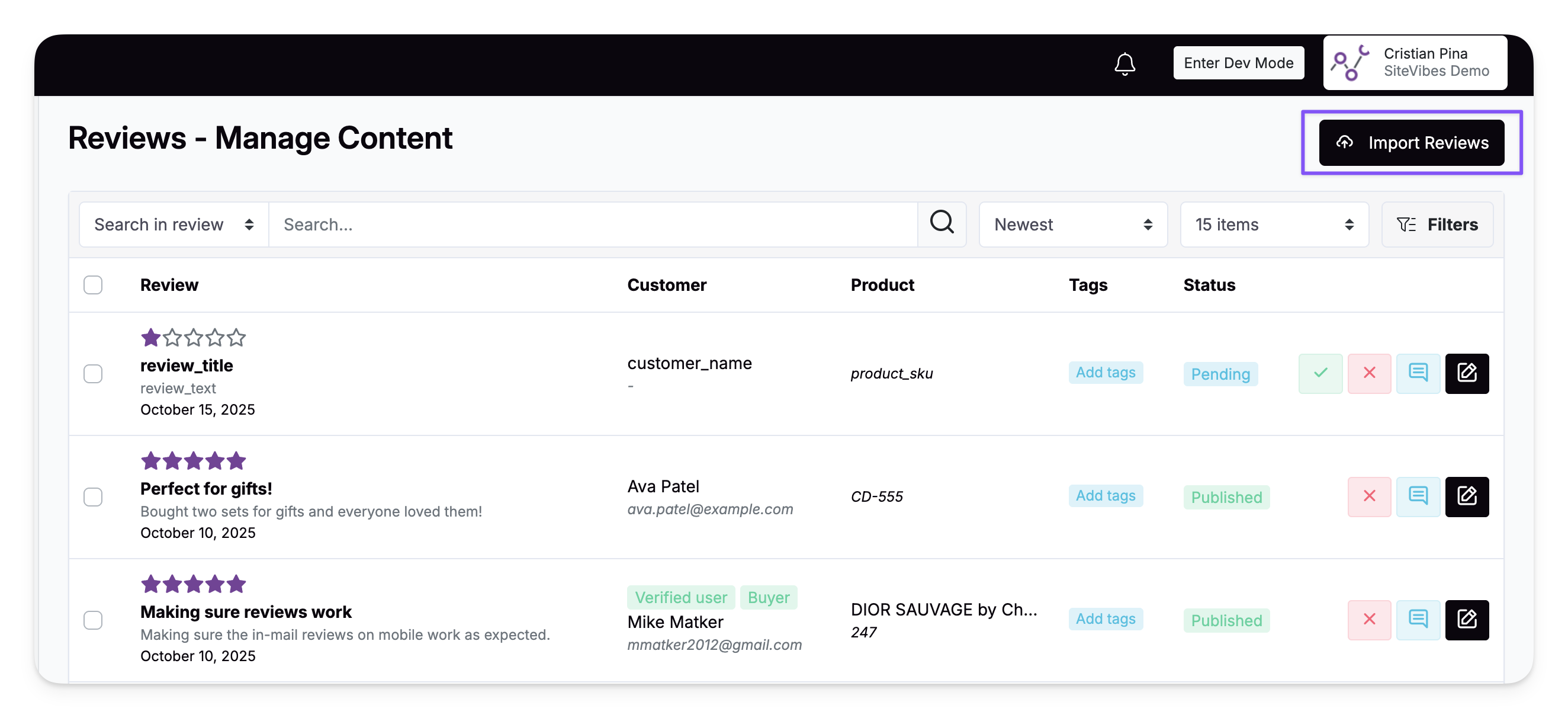
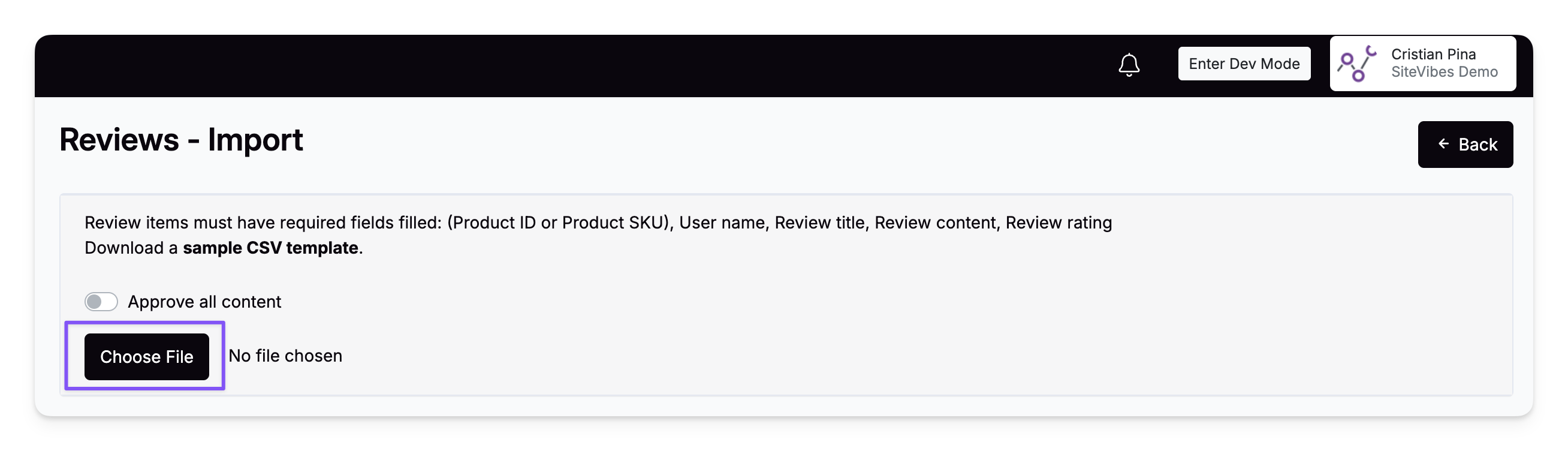
5. Upload Your CSV File
Click Choose File and select your prepared CSV file.
6. Map Your Columns
Match each column from your CSV to the correct SiteVibes field.
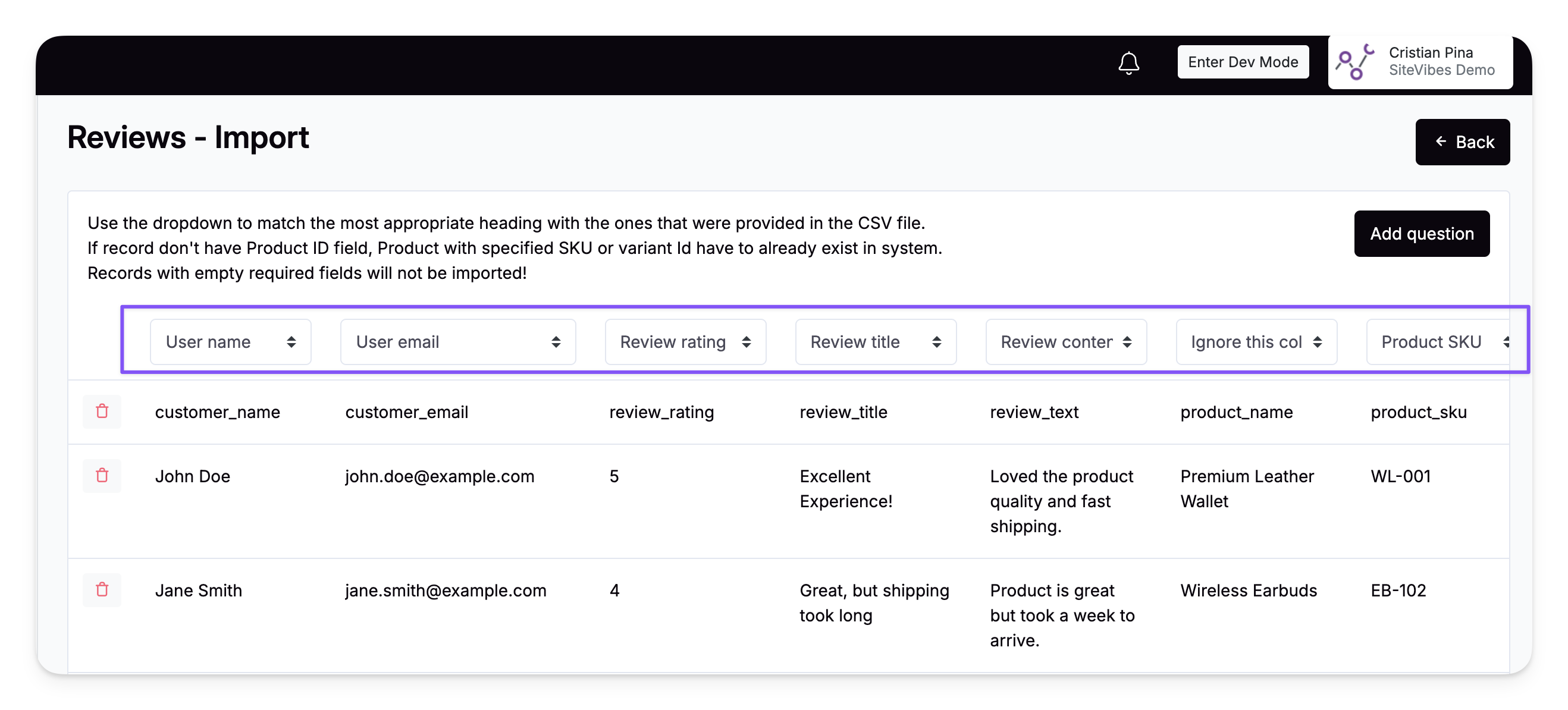
CSV Column |
Select in SiteVibes |
Product ID or SKU |
Product ID |
Title |
Review title |
Content |
Review content |
Rating |
Review rating |
Name |
User name |
Other columns |
Ignore this column |
7. Confirm and Import
Once all columns are mapped correctly:
Click Import
When prompted, click OK to confirm
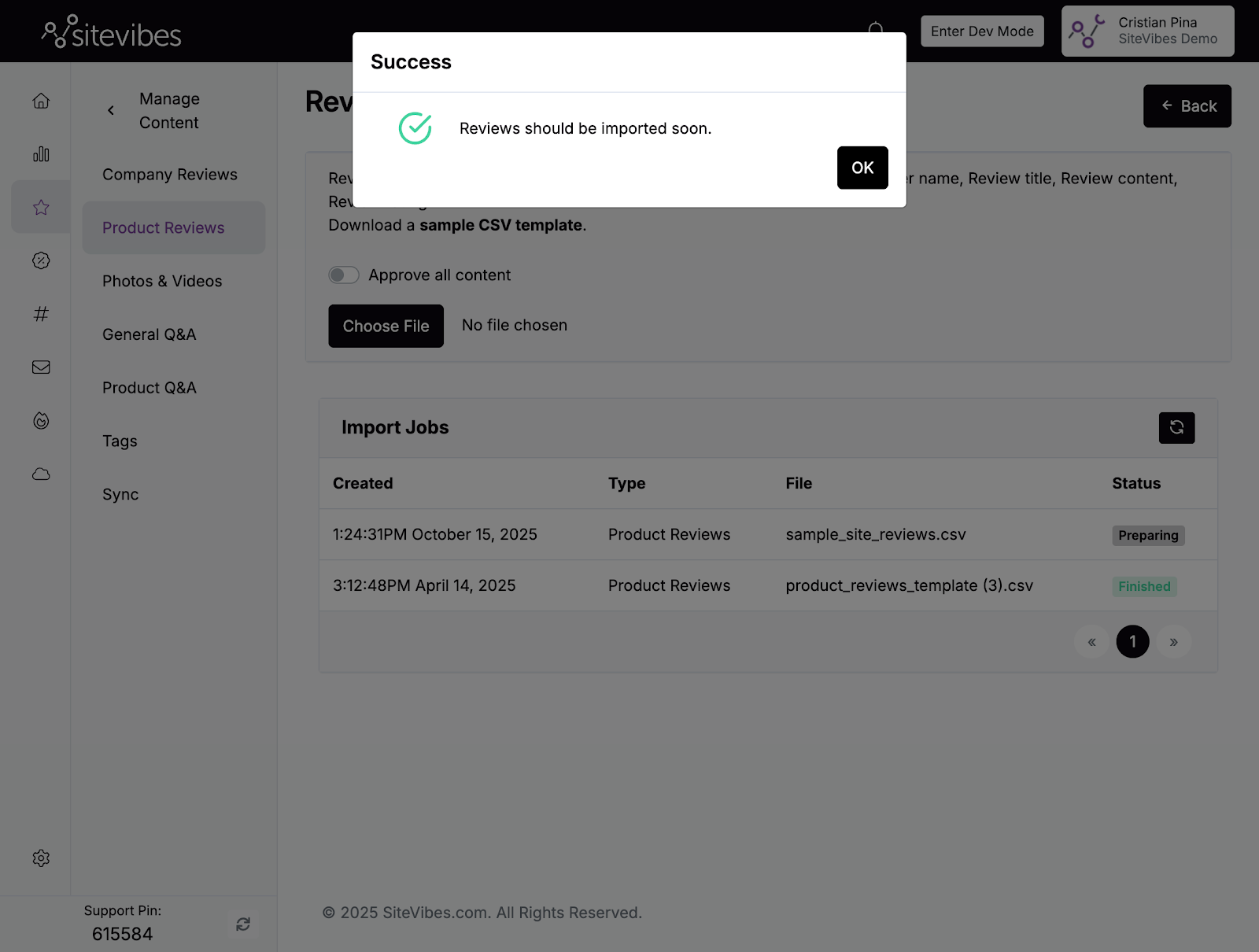
After Import
Your imported reviews will appear under Reviews → Manage Content → Product Reviews.
You can:
Edit, approve, or reject reviews
Filter by product or rating
Verify review visibility on your storefront