This guide explains how to import your customer list into SiteVibes to enable features like Loyalty, Email Marketing, and Analytics. It details the step-by-step process, including uploading a CSV, mapping data fields, and best practices for formatting and large files. For assistance, users can contact SiteVibes support.
Importing your customer list into SiteVibes allows you to power features like Loyalty, Email Marketing, and Analytics. This guide walks you through the full process, including mapping your data fields to SiteVibes.
✅ Prerequisites
Access to the SiteVibes Admin Dashboard.
A properly formatted CSV file containing your customer data.
Headers in your CSV that clearly identify the type of data in each column.
Step-by-Step Instructions
Step 1: Navigate to the Data Section
Log into app.sitevibes.com.
From the left-hand menu, click on “Data.”
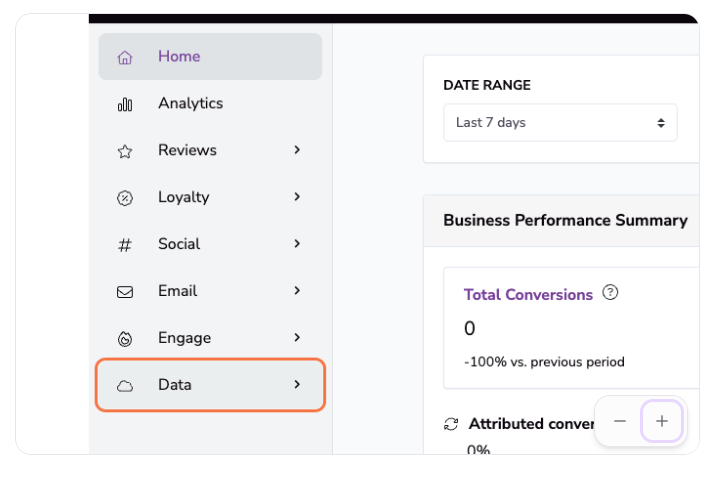
Step 2: Open the Customers Section
Click on “Customers” under the Data menu.
Step 3: Click “Import Customers”
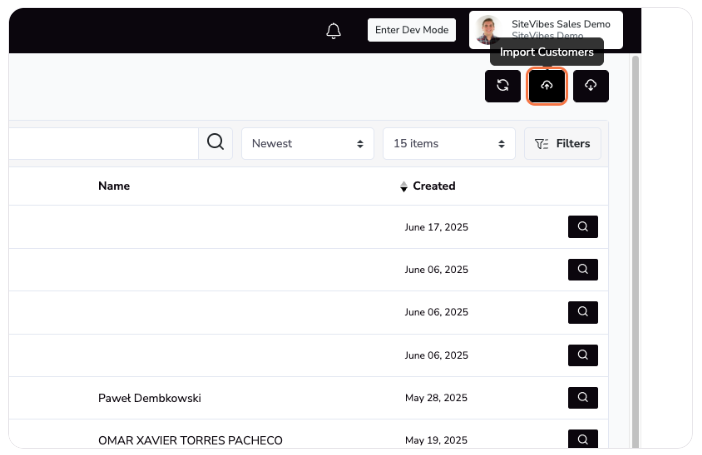
You’ll be prompted to upload your CSV file.
Step 4: Upload Your File
Select and upload your customer CSV file.
Step 5: Map Your Data to SiteVibes Fields
After uploading, you’ll be asked to match your column headers to SiteVibes-supported fields. Use the dropdown menus to map each column.
✅ Available Fields to Map:
-
Basic Info:
Email The customers email address Phone The customers phone number First name The customers first name Last name The customers last name Instagram username The customers Instagram username Loyalty Program
| Loyalty Points | Their current points balance |
| Total Points | The total points they've earned in their lifetime |
| Loyalty Status | Add a column that imports if they're in the loyalty program. TRUE = enrolled FALSE = not enrolled |
| Points adjustments | Add or remove points from their Loyalty Points |
| Anniversary date | The date in which they joined the loyalty program |
| Loyalty tier | The tier they should belong too (these names must match tiers in SiteVibes |
| CID | Online Customer ID from your Ecommerce Platform |
-
Location Data:
Country The Country code State The state code of the Customer City The city of the Customers address Zip Code The Customers address zipcode Address The main address of the Customer Address 2 The secondary address e.g. Apt., Ste., etc. Timezone -
Birthdays:
Birthday year The year of the Customers birthday Birthday month The month of the Customers birthday Birthday day The day of the Customer birthday Source & Activity:
Profile Initial Source, Campaign, Medium, Source On,
Profile Created On, First active at, Last active at,
Last email sent/ opened/ clicked, Last order atOrder History:
Total orders count, Total orders value, Average order value,
Average days between ordersEmail Marketing:
Email marketing consent, Email marketing frequency
Unsubscribe Flags:
Unsubscribed from loyalty/review/marketing emails
If you don’t want to import a column, choose “Ignore this column.”
Step 6: Finalize the Import
Click “Import” and then “OK” when the confirmation appears.
Best Practices
Use consistent email formatting (lowercase, no extra spaces).
Dates should follow MM/DD/YYYY.
If importing large files, consider splitting the file or contacting support.
Need Help?
If you’re unsure how to format your CSV or map fields, open a support ticket in the SiteVibes app. We're here to help!