Loyalty adjustment reasons in SiteVibes help track why points are manually added or removed from a customer’s account, such as for promotions, client issues, or corrections. Setting clear reasons ensures consistency and accurate reporting. The article details how to add, apply, and best utilize adjustment reasons for transparency and effective loyalty program management.
Loyalty adjustment reasons allow you to track why points are being manually added or removed from a customer’s account. Common examples include promotions, goodwill adjustments, or resolving client issues. Setting these up helps your team maintain consistency and reporting clarity.
Add New Loyalty Adjustment Reasons
- Log in to your SiteVibes dashboard: https://app.sitevibes.com.
- In the left-hand menu, click Loyalty → Programs → Settings.
- Under the Loyalty section, select Adjustment Reasons.
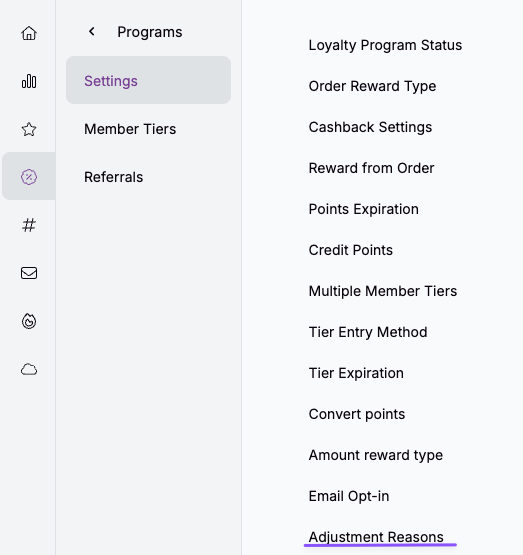
- Click Edit.
- Choose Add Adjustment Reason.
- Enter the reason name (for example, Promotion or Client Issue).
- Click Create.
When finished adding reasons, click Update to save.
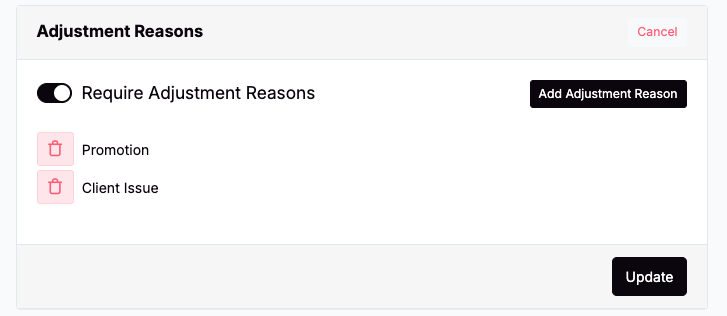
Tip: Use clear, consistent naming so your team can easily recognize and report on adjustments later.
Apply Loyalty Adjustments to a Customer
- Go to Programs → Data → Customers.
- Search for the customer by email address and select their profile.
- Open the Loyalty tab.
- Click Adjust.
- Enter the number of points to add or remove.
- Provide a short description (for example, There was an issue with client account).
- Select the appropriate Adjustment Reason from the dropdown.
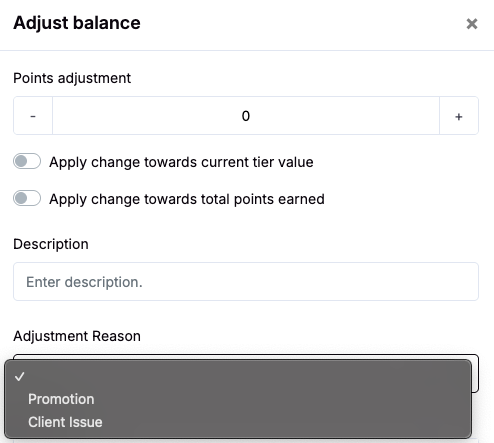
- Click Update, then confirm with OK.
Example Use Cases
- Promotion: Reward customers with bonus points during special campaigns.
- Client Issue: Compensate for service issues or order problems.
- Manual Correction: Fix point discrepancies if imports or integrations need adjustment.
Accounting / Business Tracking: Record adjustments for financial or operational reasons (e.g., reconciling liabilities, tracking write-offs, or reporting).
Best Practices
- Always select an Adjustment Reason when making changes—this ensures transparency and accurate reporting.
- Keep descriptions brief but clear so other team members understand the context.
- Review adjustments regularly in reports to monitor trends.