The SiteVibes-Klaviyo Review Request system automatically sends review requests for products purchased in your store. The system handles multiple products in a single order and can be used independently of the loyalty program features.
Setup Requirements
Active Klaviyo account
Klaviyo API key
API must have full permission access
SiteVibes admin access
Initial Setup
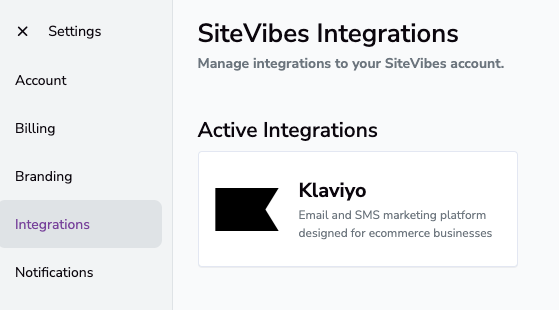
Navigate to Settings → Integrations in your SiteVibes dashboard
Click the "Klaviyo" integration
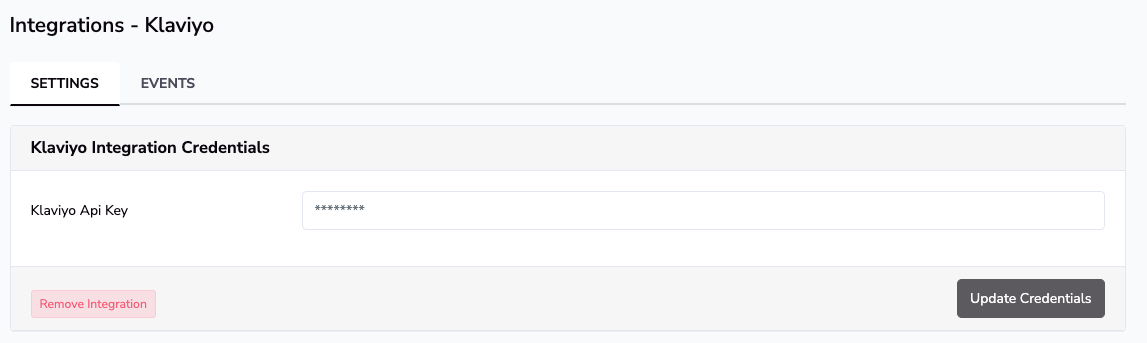
Locate the "Klaviyo Integration Credentials" section
Enter your Klaviyo Public API key
Click "Update Credentials" to save
Enable Review Requests
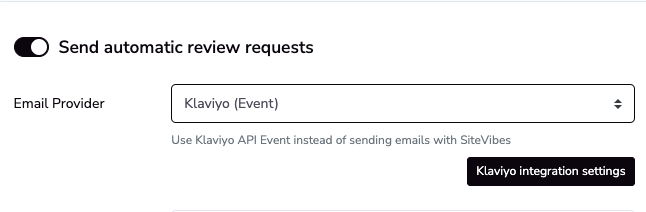
Navigate to Email > Reviews > Reviews Requests
Enable "Send automatic review requests"
Select "Klaviyo (Event)" from the dropdown
Configure the "Trigger" section to set when the event/email will be sent to your customers
Click Update
Email Template Configuration
Setting Up Klaviyo Flow: Flow Configuration
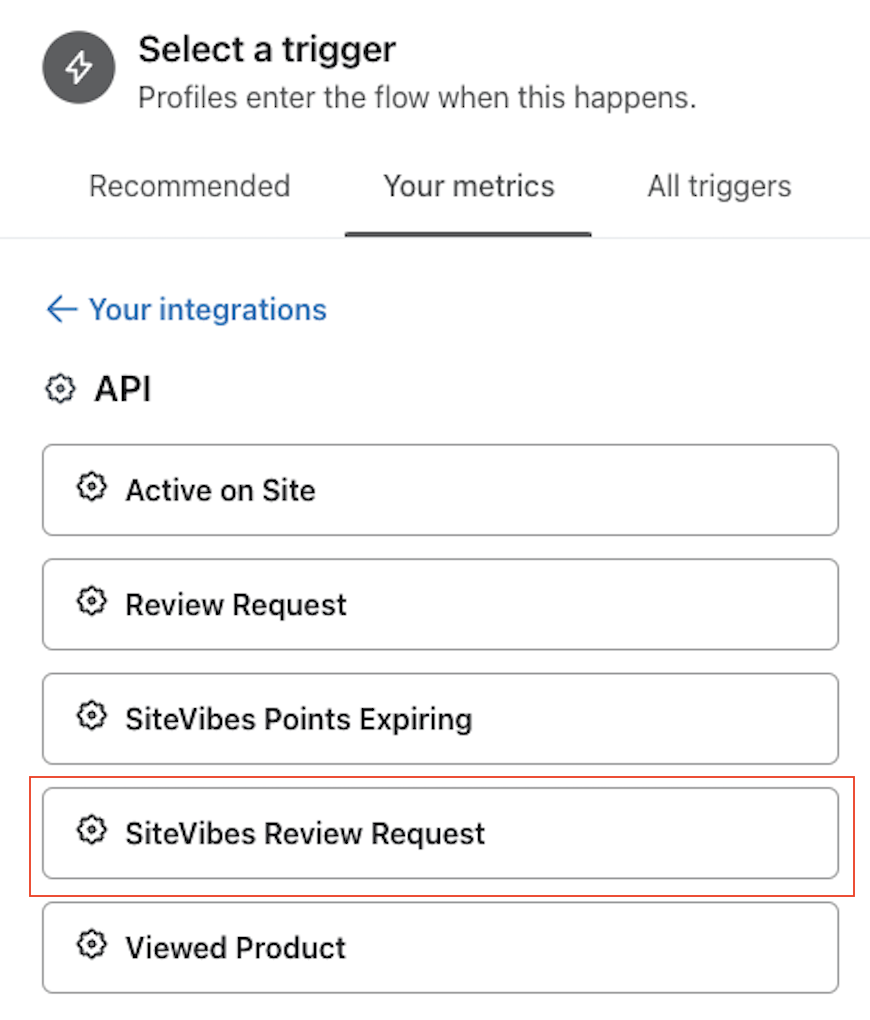
Create new flow in Klaviyo
Select "SiteVibes Review Request" as the trigger event
Design your email template using the customization options
Use the template below for the SiteVibes variables needed to collect reviews
Set up timing for when reviews should be requested
Activate the flow
Template Preview
{% with productNameColor='#888888' starColor='#E7721B' starSize='32' productImageSize='64' %}
{% for eventProduct in event.Products %}
<table role="presentation" width="100%" border="0" cellpadding="0" cellspacing="0"> <tbody> <tr> <td valign="middle" style="vertical-align: middle; width: {{ productImageSize }}px;"> <img alt="Product Image" src="{{ eventProduct.ProductImageURL }}" width="{{ productImageSize }}" height="{{ productImageSize }}" style="display: block; width: {{ productImageSize }}px; height: {{ productImageSize }}px; object-fit: cover;"> </td> <td valign="middle" style="vertical-align: middle;padding: 20px;"> <div style="color: {{ productNameColor }};">{{ eventProduct.ProductName }}</div> <a href="{{ eventProduct.ReviewRequestURL }}&review-rating=1" target="_blank" style="text-decoration: none;"> <span style="color: {{ starColor }};font-size:{{ starSize }}px;">☆</span> </a> <a href="{{ eventProduct.ReviewRequestURL }}&review-rating=2" target="_blank" style="text-decoration: none;"> <span style="color: {{ starColor }};font-size:{{ starSize }}px;">☆</span> </a> <a href="{{ eventProduct.ReviewRequestURL }}&review-rating=3" target="_blank" style="text-decoration: none;"> <span style="color: {{ starColor }};font-size:{{ starSize }}px;">☆</span> </a> <a href="{{ eventProduct.ReviewRequestURL }}&review-rating=4" target="_blank" style="text-decoration: none;"> <span style="color: {{ starColor }};font-size:{{ starSize }}px;">☆</span> </a> <a href="{{ eventProduct.ReviewRequestURL }}&review-rating=5" target="_blank" style="text-decoration: none;"> <span style="color: {{ starColor }};font-size:{{ starSize }}px;">☆</span> </a> </td> </tr> </tbody></table>
{% endfor %}{% endwith %}Troubleshooting
Common Issues
Reviews Not Being Requested
Verify your Klaviyo Public API key is correct
Check if the flow is activated in Klaviyo
Confirm your email template is properly configured
Missing Product Images
Verify product images are uploaded to your store
Check image URLs in your store platform
Ensure images are publicly accessible
Flow Not Triggering
Check if the flow is active in Klaviyo
Verify the trigger event is properly selected
Confirm recent orders are being tracked