This guide will walk you through the process of adding new users to your SiteVibes account. Adding team members helps you collaborate effectively and manage your website analytics together.
What You'll Need
- Admin access to your SiteVibes account
- Email address for the new user
- Knowledge of which permission level to assign
Step-by-Step Instructions
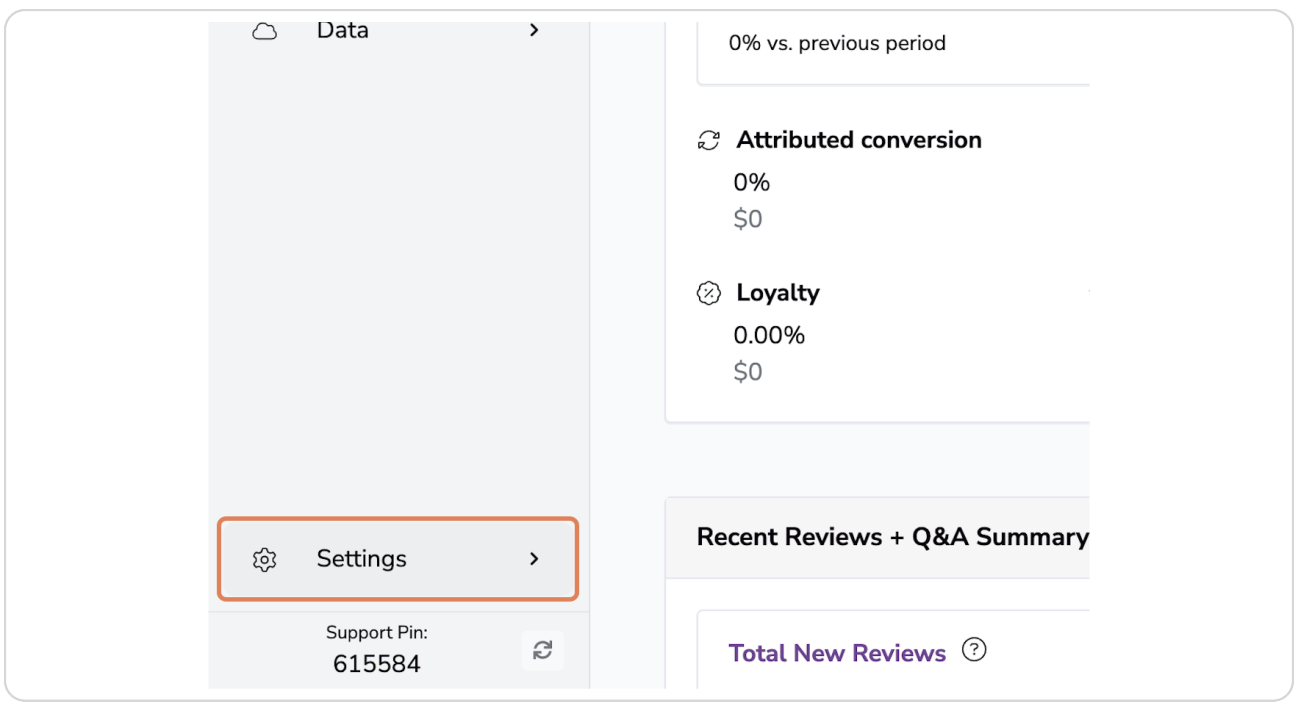
1. Access Settings
From your SiteVibes dashboard, locate and click on the Settings option in the left navigation menu.
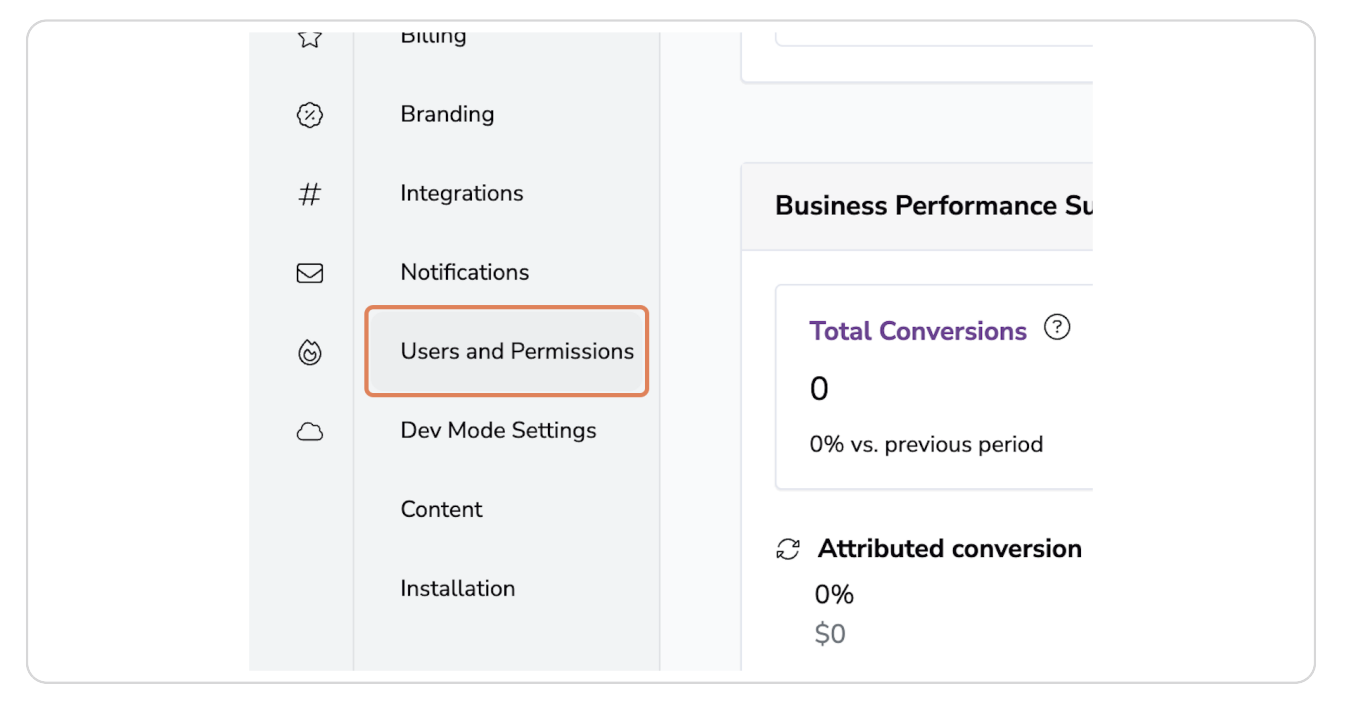
2. Navigate to User Management
Within the Settings menu, click on Users and Permissions. This will take you to the user management area.
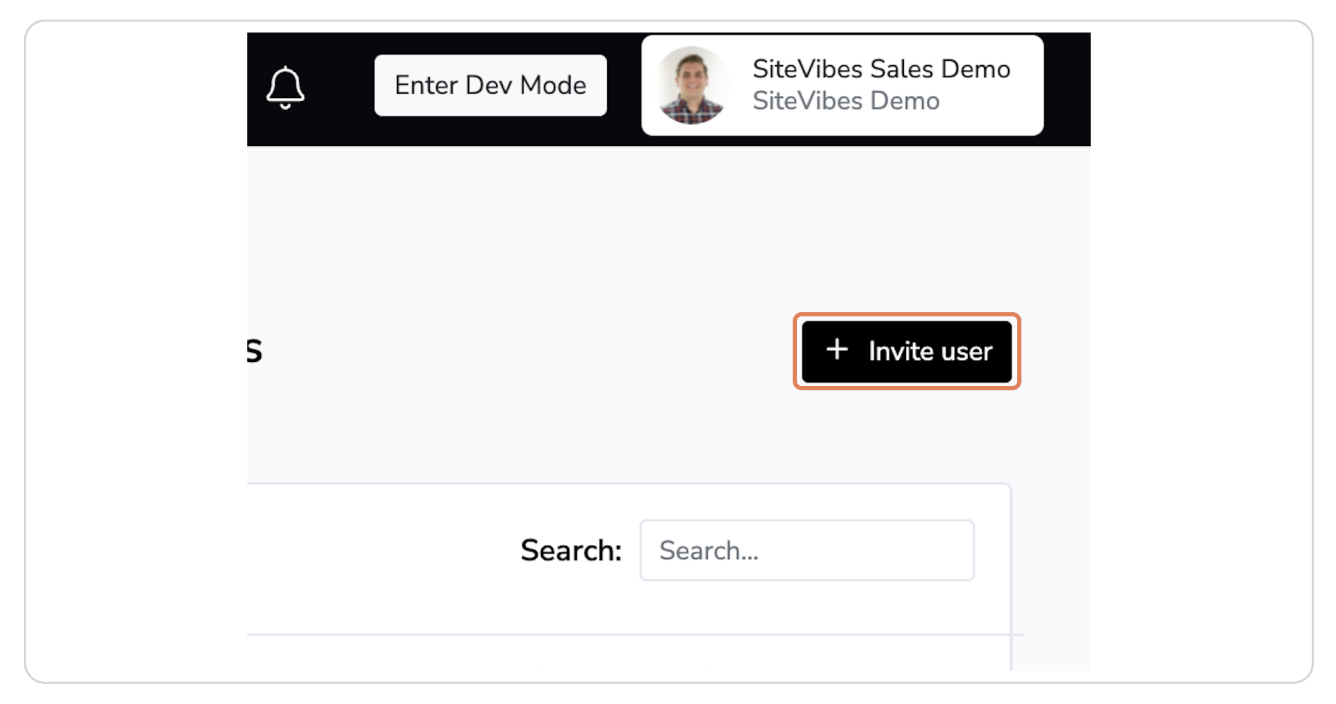
3. Initiate User Invitation
Look for the Invite user button (typically displayed with a "+" icon) and click on it. This will open the invitation form.
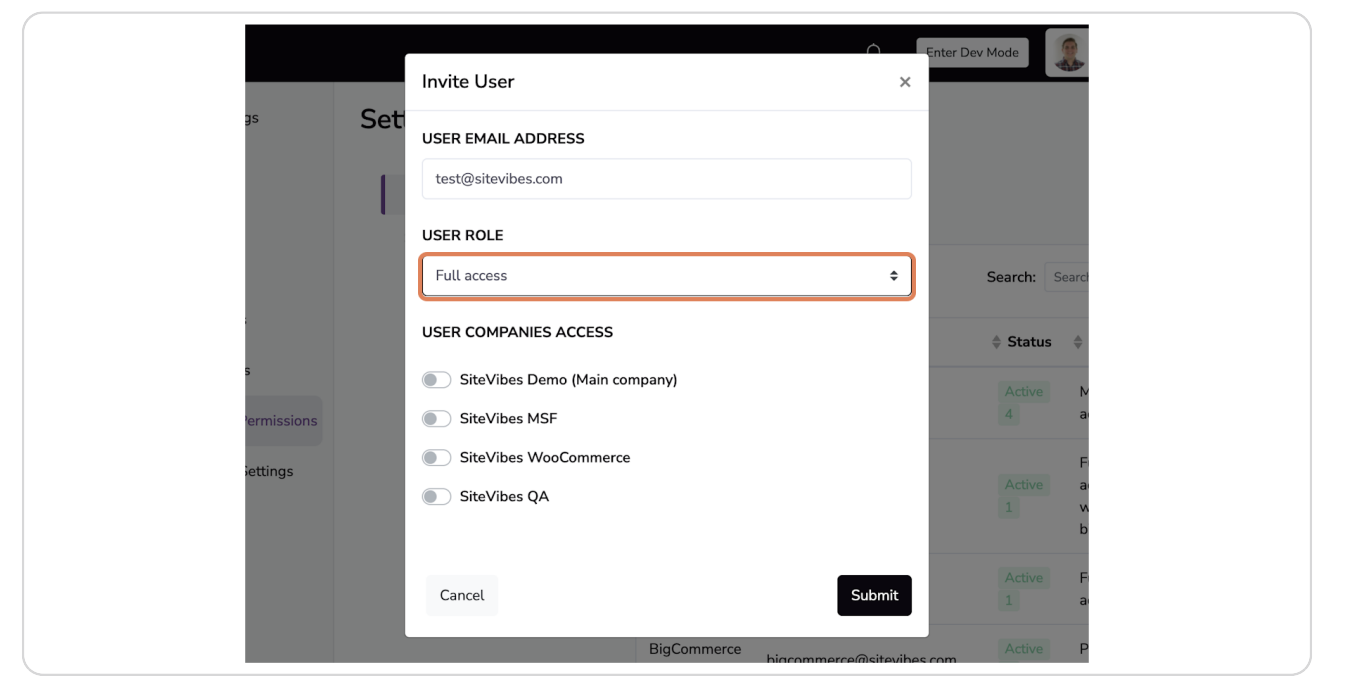
4. Enter User Details
In the invitation form:
- Enter the new user's email address in the USER EMAIL ADDRESS field
- Use the dropdown under USER ROLE to select the appropriate access level:
- Full access: Complete administrative control.
- Full access without Billing: Complete control of entire SiteVibes dashboard without access to billing details.
- Content moderator: Ability to manage customers (i.e. merge customers and adjust loyalty points) as well as product reviews, company reviews, answer product questions and answer general questions.
Partial Access: Individually select which areas of SiteVibes a user can access.
5. Set Company Access
If your account has multiple companies or websites, you can select which ones the new user should have access to by checking the appropriate boxes under USER COMPANIES ACCESS.
6. Send the Invitation
After configuring all settings, click the Submit button to send the invitation.
7. Confirm Action
A confirmation dialog will appear. Click OK to confirm.
8. Manage Invitation Expiration (Optional)
By default, invitations expire after 48 hours. If needed, you can click on the dropdown trigger next to the expiration date to modify when the invitation will expire.
What Happens Next:
- The new user will receive an email invitation to join your SiteVibes account
- They will need to accept the invitation and create their password
- Once completed, they will appear in your user list with their assigned permissions
Troubleshooting
If the invitation doesn't arrive, check your user's spam folderInvitations expire after 48 hours by default; you may need to resend if expiredIf the user has trouble accessing specific features, verify their permission level is appropriate